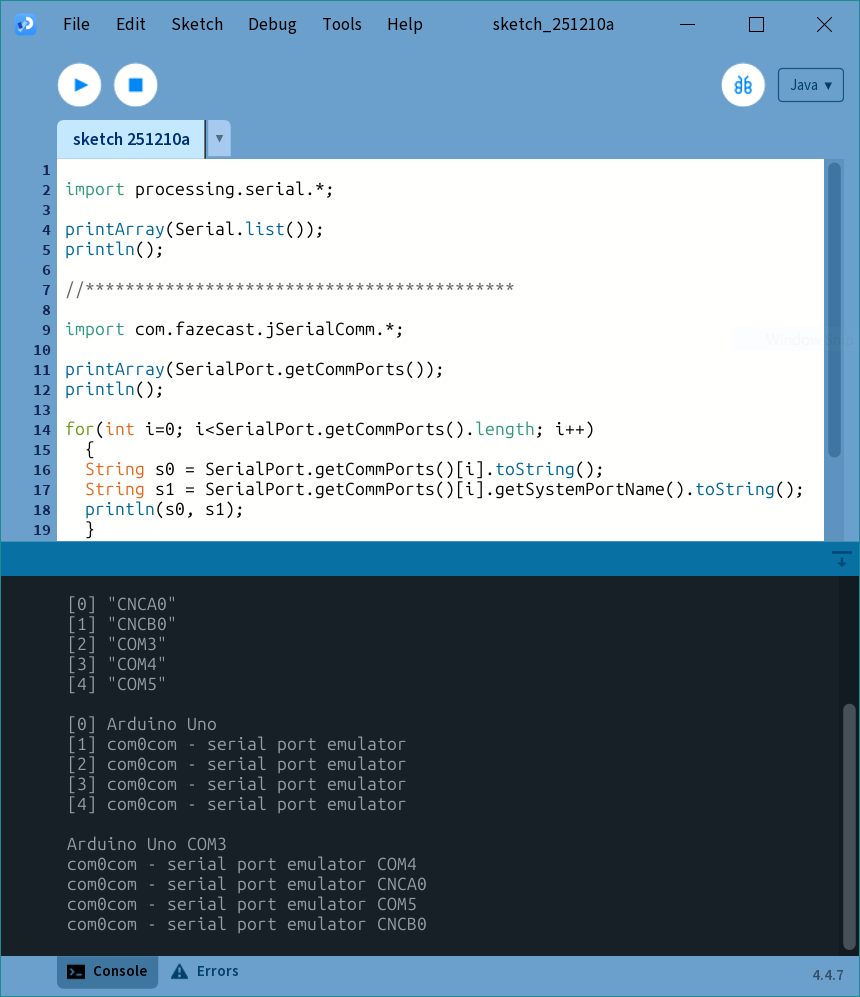
Hey everyone,
I’m working on a project for school, and for some reason, my environment is messing up. The deadline is upcoming Friday, so I’m still researching some solutions while also making this post. Thanks for your help!
The problem:
I have an Arduino Uno that communicates data to Processing 4.2, but Processing is not detecting the Arduino anymore. The connection always worked fine, but without any changes in both the codes, it suddenly stopped. Testing the same code and Arduino on a different laptop does work, Processing is then able to detect the Arduino. The Arduino IDE is able to see the Uno, and I have the serial monitor off. With the IDE closed, the problem still exists.
Things I already noticed:
- The Processing code runs/starts better and faster on a different laptop (of the same type, just a year newer)
- Not the from this problem, but maybe good to know: A few weeks back, I’ve had the issue that the Arduino IDE did not saw a different microcontroller. While a secondair program was able to see the same microcontroller. The IDE was not able to detect the mc, even with the program closed and my laptop restarted.
The setup:
Arduino Uno with a MPR121 Capacitieve Touch Sensor Module connected to it. The Arduino sends an ‘id’ number and ‘value’ number through the serial monitor whenever there is a change on that ‘id’. (see code below)
Processing visualizes the incoming ‘id’ and ‘value’. This code is made for quick debugging (but also takes long to start up (meaning the window pops up, and it takes long for the code to go into the draw() function.
The codes:
Processing code:
import processing.serial.*;

Serial myPort;  // Create object from Serial class
String val;     // Data received from the serial port
boolean SerialAvailable = false;

int incommingSerialId = 0;
int valueFromSerial = 0;
int[] interaction = new int[13];

color bgColor;

void setup() {
  size(400, 250);

  try {
    String portName = Serial.list()[0]; //change the 0 to a 1 or 2 etc. to match your port
    myPort = new Serial(this, portName, 9600);
    myPort.bufferUntil('\n');
    SerialAvailable = true;
    println("arduino found");
    bgColor = color(250);
    fill(0);
  }
  catch(Exception e) {
    println("arduino not found");
    SerialAvailable = false;
    bgColor = color(100, 0, 0);
    fill(255);
  }

  textSize(60);
}

void draw() {
  background(bgColor);
  CheckSerialCom();

  push();
  String sc2 = incommingSerialId + ": " + interaction[incommingSerialId];
  text(sc2, 40, 120);

  pop();

  println(interaction[2]);
}

void CheckSerialCom() {
  if (SerialAvailable) {
    SerialCom();
  } else {

    for (int i = 0; i < 9; i++) {
      if (keyPressed && ((key >= '0' && key <= '9') || key == ' ')) {
        int value = key - '0';
        if (value == i || key == ' ') {
          interaction[i] = 1;
        }
      } else {
        interaction[i] = 0;
      }
      UpdateInteraction(i,interaction[i]);
    }
  }
}

void SerialCom() {
  // If data is available,
  if ( myPort.available() > 0) {
    val = myPort.readStringUntil('\n');         // read it and store it in val

    if (val != null) {
      val = trim(val);      // removes whitespace + \r + \n

      String[] parts = split(val, ';');

      if (parts.length == 2) {
        int id = int(parts[0]);
        int value = int(parts[1]);

        UpdateInteraction(id, value);
      }
    }
  }
}

void UpdateInteraction(int id, int value) {
  incommingSerialId = id;
  interaction[id] = value;
}
Arduino code:
/*********************************************************
This is a library for the MPR121 12-channel Capacitive touch sensor

Designed specifically to work with the MPR121 Breakout in the Adafruit shop
  ----> https://www.adafruit.com/products/

These sensors use I2C communicate, at least 2 pins are required
to interface

Adafruit invests time and resources providing this open source code,
please support Adafruit and open-source hardware by purchasing
products from Adafruit!

Written by Limor Fried/Ladyada for Adafruit Industries.
BSD license, all text above must be included in any redistribution
**********************************************************/

#include <Wire.h>
#include "Adafruit_MPR121.h"

#ifndef _BV
#define _BV(bit) (1 << (bit))
#endif

// You can have up to 4 on one i2c bus but one is enough for testing!
Adafruit_MPR121 cap = Adafruit_MPR121();

// Keeps track of the last pins touched
// so we know when buttons are 'released'
uint16_t lasttouched = 0;
uint16_t currtouched = 0;
uint16_t baseln;
uint16_t filterln;

void setup() {
  Serial.begin(9600);

  while (!Serial) {  // needed to keep leonardo/micro from starting too fast!
    delay(10);
  }

  //Serial.println("Adafruit MPR121 Capacitive Touch sensor test");

  // Default address is 0x5A, if tied to 3.3V its 0x5B
  // If tied to SDA its 0x5C and if SCL then 0x5D
  if (!cap.begin(0x5A)) {
    //Serial.println("MPR121 not found, check wiring?");
    while (1)
      ;
  }
  //Serial.println("MPR121 found!");
}

void loop() {
  // Get the currently touched pads
  currtouched = cap.touched();

  for (uint8_t i = 0; i < 12; i++) {
    // it if *is* touched and *wasnt* touched before, alert!
    if ((currtouched & _BV(i)) && !(lasttouched & _BV(i))) {
      Serial.print(i);
      Serial.print(";");
      Serial.println("1");
    }
    // if it *was* touched and now *isnt*, alert!
    if (!(currtouched & _BV(i)) && (lasttouched & _BV(i))) {
      Serial.print(i);
      Serial.print(";");
      Serial.println("0");
    }
  }

  // reset our state
  lasttouched = currtouched;

  delay(100);
}