Google Maps expects a .csv file containing data to place on a map. My test file has 5 rows and 5 columns. The first row is a header with column names. My file ends with the usual null characters. It failed to load. I added a \r\n to the end, it still failed. I added \n to the end of the last line, it still failed to load. I surrounded all the data with double quotes and it still failed. However, if I remove the extra stuff , load it into Excell, and then save it as a .csv file, it works.
What am I missing here? Why does the Excell .csv file work?
Hello @fredstout ,
Notepad++ is a good tool for examining files.
I often use it to examine text files that may have some characters that are hidden and unwanted.
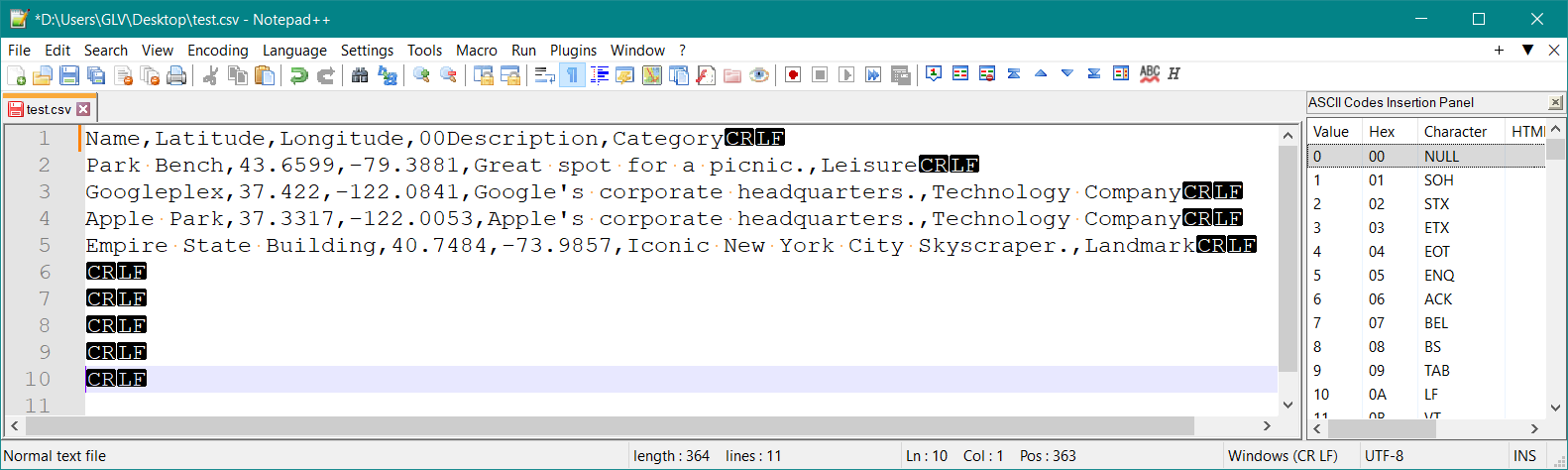
I suggest you compare (add a compare plugin) your two files to see what the issue was with the original file.
I only had CR LF in above and added the extras to the end.
I tried UTF-8 (recommended) and also UTF-16 and both worked!
You can also add characters from the character panel for testing (Panel on right in image).
You should not have null characters in your CSV; this is just plain text and should only have printable characters (no nulls or non printable ones).
Sample text:
Name,Latitude,Longitude,00Description,Category
Park Bench,43.6599,-79.3881,Great spot for a picnic.,Leisure
Googleplex,37.422,-122.0841,Google's corporate headquarters.,Technology Company
Apple Park,37.3317,-122.0053,Apple's corporate headquarters.,Technology Company
Empire State Building,40.7484,-73.9857,Iconic New York City Skyscraper.,Landmark
There is a learning curve to using NotePad++ but worth the investment in time.
This is one the the essential tools in my tool box:
I was able to successfully create CSV files for Google Maps and import these.
That was fun!
:)
That is what was hidden and revealed with Notepad++:

I add a CRLF at end of text for testing.
I use the latest.
There is a learning curve to using Notepad++ !
I have been using it for decades and it is now just a tool.
I wanted to see if Processing generates the correct CSV as part of testing:
Table table;

void setup() {

  table = new Table();

// Name  Latitude  Longitude  Description  Category

  table.addColumn("Name", Table.STRING);
  table.addColumn("Latitude", Table.FLOAT);
  table.addColumn("Longitude", Table.FLOAT);
  table.addColumn("Description", Table.STRING);
  table.addColumn("Category", Table.STRING);

// Googleplex  37.422  -122.0841  Google's corporate headquarters.  Technology Company

  TableRow newRow = table.addRow();
  table.setString(0, "Name", "Googleplex");
  table.setFloat(0, "Latitude", 37.422);
  table.setFloat(0, "Longitude", -122.0841);
  table.setString(0, "Description", "Google's corporate headquarters.");
  table.setString(0, "Category", "Technology Company");

  saveTable(table, "data/new.csv");
}
It looked ok!
:)
How are you currently creating these files?
If it is Processing code please share a minimal example.
:)
Those are grave accents; on my mac keyboard the key is top left, immediately before the “1“
Use ```Processing … ``` if you want it formatted for Processing (its possible to format for other languages such as Python as well).
void MyMaps (int count){
String Title = "Station,Latitude,Longitude,Name";
String w = "";
int i;
int records = count -1;
MyMapsData = new String [count - 2];
MyMapsPointer = 1;
MyMapsData[0] = Title;
for (i = 2; i < records; i++){
Tokens = Mapping_Data[i].split(",");
if (Tokens[0].equals("***EOF***")) break;
if (Tokens[1].equals("MMX")) Tokens[7] = "New MM "+str(int(Tokens[7])) + ".0";
w = Tokens[0] + "," + Tokens[3] + "," + Tokens[4] + "," + Tokens[7];
MyMapsData[MyMapsPointer] = w;
MyMapsPointer ++;
}
saveStrings (MyMapsDataFileName,MyMapsData );
}
Did I get the formatting and tick marks correct?
My thanks, again, for your help.
Fred